
Offline coding with Claude: what works without internet (and what does not)
You cannot use Claude or Claude Code fully offline: Claude runs in Anthropic's cloud, and Claude Code's own system requirements say an internet connection is required. Offline, you can still edit code, commit with git, run tests and read local docs, and you can run a local model on your Mac with Ollama or LM Studio. The more useful fix is usually to stop your connection dropping in the first place.
Last updated: 22 November 2026
Trains, airport lounges, client guest Wi-Fi and planes all have one thing in common: the connection drops when you least want it to, and a Claude Code session can stall halfway through a refactor. This guide is the honest version: what needs a connection, what does not, where local models fit in, and a setup that makes a drop cost seconds rather than an hour.
Can I use Claude Code offline?
No. Claude Code's setup page lists "internet connection required" under its system requirements [1]. Its network configuration page lists the hosts it needs, including api.anthropic.com for Claude API requests and claude.ai for account authentication [2].
What runs where matters here:
- The model runs in the cloud. Every time Claude thinks, plans or writes code, Claude Code sends a request to Anthropic.
- The tools run on your Mac. File edits, shell commands and tests happen locally.
- So offline, the loop breaks. Your files are fine and your tools still work, but there is nothing to decide what to do next.
The same is true for the Claude apps and claude.ai in a browser, and for any other cloud-hosted coding assistant. If the model lives in a data centre, you need a route to that data centre.
What can I still do when I am coding offline?
Quite a lot. Most of software development never needed the internet; we just got used to having it.
| Task | Works offline? | What to prepare while online |
|---|---|---|
| Editing code in your editor | Yes | Nothing |
| git commit, branch, diff, log, stash | Yes | Pull the latest changes first |
| git push, pull, opening PRs | No | Push before you lose signal |
| Running tests and builds | Usually | Install all dependencies first |
| Installing new packages | No | Install what you will need in advance |
| Docker containers | Yes, if images are local | Pull images before you go |
| Reading docs | Only if local | Save or clone the docs you need |
| Claude, Claude Code, other cloud AI | No | Nothing helps; you need a connection |
| A local LLM | Yes | Download the app and model files first |
My offline prep list
Before a flight or a long train ride, I spend five minutes on this:
- Pull and push. Get the latest main branch and push anything you do not want stuck on one machine.
- Install dependencies. Run your normal install so packages are on disk. Run the test suite once to prove it works without fetching anything.
- Pull container images that your local stack uses.
- Clone or save docs for the libraries you are working with. Many projects keep their docs in the same repository as the code.
- Pick offline-friendly tasks. Writing tests, fixing small bugs, reading code, refactoring a module you know well, writing docs. Save the "explore a new API" task for when you are back online.
- Commit often. Small local commits mean you can hand a clean history to Claude Code when you reconnect, and you lose nothing if you need to switch machines.
Can I run a local LLM on my Mac instead?
Yes, and on a modern Apple silicon Mac it works well for many things. Two popular options are Ollama and LM Studio. Neither is Claude: you are running an open-weights model on your own hardware, and you should expect it to be smaller and less capable than the frontier models in the cloud.
Ollama on Mac
Ollama is a free app and command-line tool for running models locally. Its macOS docs list these requirements [3]:
- macOS Sonoma (v14) or newer.
- Apple M series (CPU and GPU support) or x86 (CPU only).
- Space for models, which Ollama says "can be tens to hundreds of GB in size".
You install it by downloading the app from ollama.com and dragging it into Applications; on first start it offers to link the ollama command into your PATH [3]. Running ollama in Terminal walks you through setup, where you can choose a local model or sign in for Ollama's cloud models [4]. Remember that cloud models are, by definition, not offline. Download the local model you want while you still have a connection.
Ollama also documents ollama launch claude, which connects Claude Code to local or cloud models through Ollama's Anthropic-compatible API [5]. Ollama recommends a context window of 64k or higher for larger repositories [5]. Two honest caveats:
- It is not Claude doing the thinking. Claude Code becomes the harness, and the local model does the reasoning. Anthropic says it does not support routing Claude Code to non-Claude models through a gateway [6].
- Test it before you rely on it. Claude Code talks to several hosts besides the model API, such as for authentication [2]. I have not found an Anthropic statement that Claude Code works fully offline in this setup, so try it with Wi-Fi switched off at home before you depend on it on a plane.
LM Studio on Mac
LM Studio is a desktop app for downloading and chatting with local models. Its system requirements page says [7]:
- Apple silicon (M1/M2/M3/M4); Intel-based Macs are currently not supported.
- macOS 14.0 or newer.
- 16GB+ RAM recommended; 8GB Macs can work with smaller models and modest context sizes.
- "LM Studio can operate entirely offline, just make sure to get some model files first."
Ollama or LM Studio?
- Ollama if you live in the terminal, want a local API for scripts and tools, or want to try its coding-agent integrations. It also supports Intel Macs (CPU only).
- LM Studio if you want a friendly desktop app to browse models and chat, and you are on Apple silicon.
Either way, a local model is a decent offline helper for explaining code, writing small functions, drafting tests and answering "how does this API work" questions. For long, multi-file agent work, I still wait until I am back on Claude.
How do I stop losing my connection mid-session?
For most people "offline coding" really means "flaky connection coding". The train goes through a tunnel, the café Wi-Fi times out, the office network kicks you off. The connection is gone for two minutes and your session falls over. This is fixable.
Tether to your phone
Your iPhone's Personal Hotspot can share its mobile data over Wi-Fi, USB or Bluetooth [8]:
- Wi-Fi: turn on "Allow Others to Join" in Settings > Personal Hotspot so other devices can find it [8].
- USB: connect the Mac to the iPhone with a cable [8]. Handy when there are dozens of Wi-Fi networks around you.
- Instant Hotspot: if your Mac and iPhone are signed in to the same Apple Account with Wi-Fi and Bluetooth on, you can pick the iPhone from the Mac's Wi-Fi menu without a password, and "Allow Others to Join" does not need to be on [9].
Fail over automatically
The problem with tethering is that you have to notice the drop, open the Wi-Fi menu and pick the hotspot. By then your session may have errored.
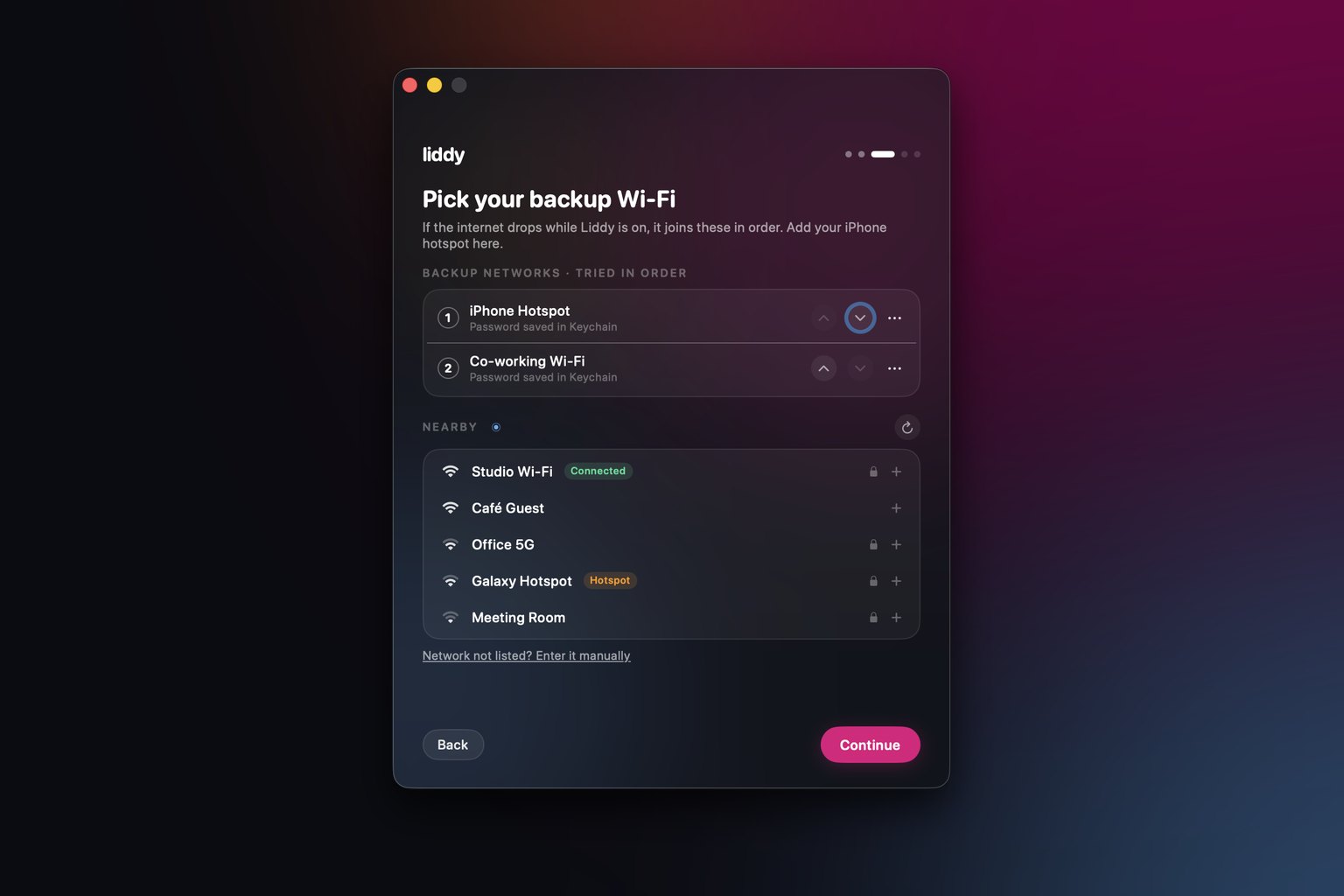
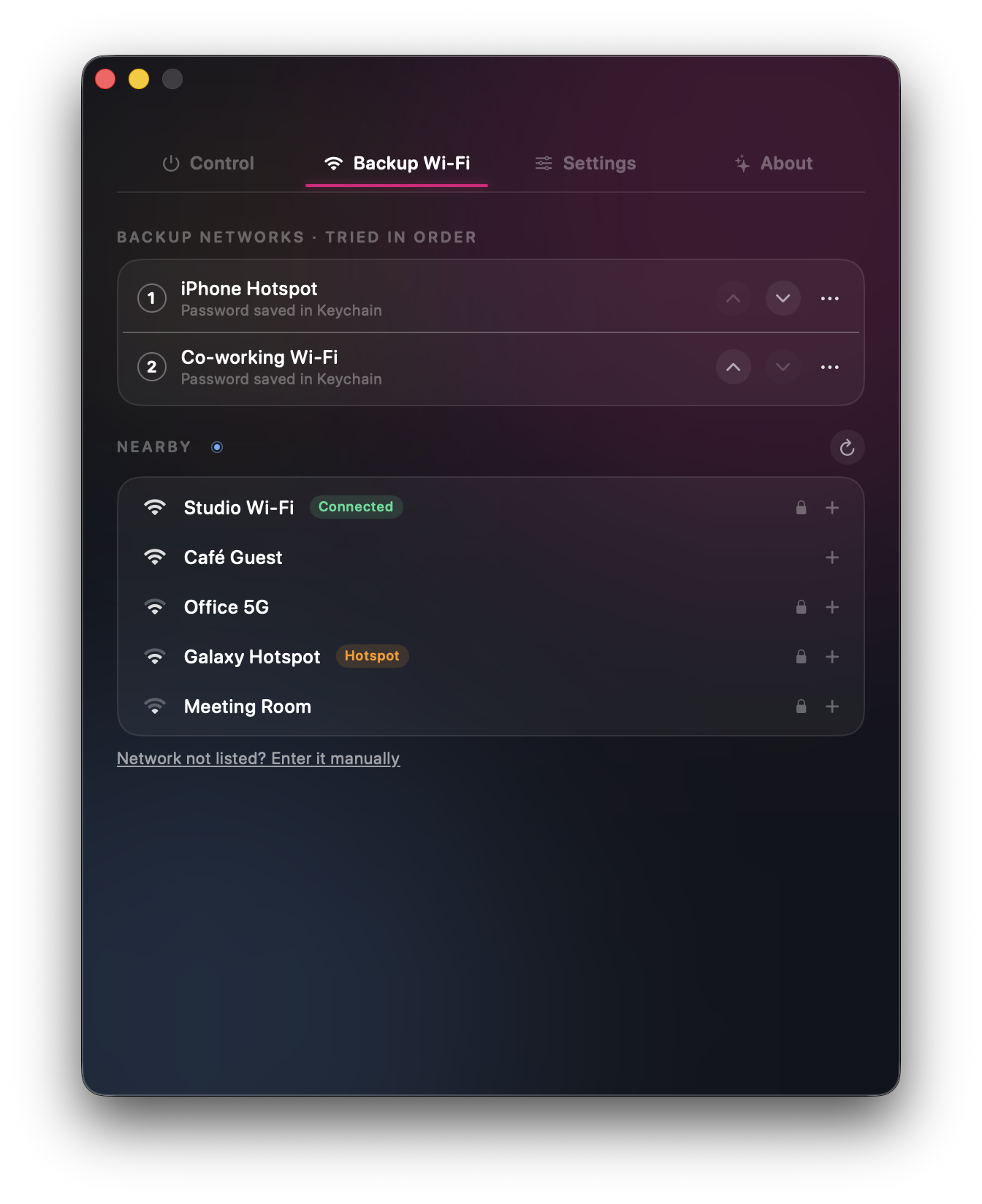
This is one of the reasons we built Liddy, a free macOS menu bar app. While Liddy is on, it checks real internet access every 30 seconds (every 5 seconds once it is offline) by loading Apple's public test page. After 15 seconds offline, it tries your backup networks in the order you chose, joins one, confirms the internet is actually back, and sends you a notification. You pick backup networks from a live scan or type them in, and the passwords are stored in the macOS Keychain.
Two limits worth knowing:
- Liddy cannot switch on your iPhone's Personal Hotspot, because Apple offers no way for apps to do that. Leave the hotspot on with "Allow Others to Join" enabled if you want it as a backup.
- Failover only runs while Liddy is on. Liddy's main job is keeping your Mac awake with the lid closed, so turning it on also stops the Mac sleeping. Turn it off when you do not need either.
I go deeper on the Wi-Fi side in how to make a Mac auto-connect to an iPhone hotspot.
Make your Claude Code sessions resilient
A few habits make a dropped connection much less painful:
- Commit before each big prompt. If a session dies mid-edit,
git diffshows you exactly what changed. - Use Claude Code's checkpoints.
/rewind(or Esc twice on an empty prompt) opens the rewind menu, so you can undo Claude's file edits back to an earlier prompt [10]. - Run long jobs in tmux so a terminal crash does not take the session with it. I explain this setup in how to run Claude Code with the lid closed.
- Use Remote Control's interactive mode on flaky networks. Anthropic's docs say an interactive Remote Control session keeps retrying for as long as an outage lasts and reconnects on its own, while server mode gives up after roughly 10 minutes offline [11].
What about coding on a plane?
Plane Wi-Fi is the hardest case. A sensible approach:
- Do the offline prep list above before boarding.
- Plan offline tasks: tests, docs, small fixes, reading code.
- Use a local model for quick questions if you set one up and tested it at home.
- Queue up the Claude Code prompts you want to run in a notes file, and run them when you land.
If you are planning how AI coding tools fit into your team's workflow more broadly, including what to run locally and what to keep in the cloud, our AI fractional CTO tool is a good starting point. For your own laptop, the setup above covers it.
Download Liddy free: macOS 14 Sonoma or later, Apple silicon and Intel, no account or subscription. If you also want to keep your Mac awake with the lid closed, read how to keep a Mac awake with the lid closed.
Sources
- Anthropic, Claude Code setup (system requirements): https://code.claude.com/docs/en/setup
- Anthropic, Claude Code network configuration (network access requirements): https://code.claude.com/docs/en/network-config
- Ollama, macOS: https://docs.ollama.com/macos
- Ollama, Quickstart: https://docs.ollama.com/quickstart
- Ollama, Claude Code integration: https://docs.ollama.com/integrations/claude-code
- Anthropic, Other LLM gateways: https://code.claude.com/docs/en/llm-gateway
- LM Studio, System requirements: https://lmstudio.ai/docs/app/system-requirements
- Apple Support, Connect to the Personal Hotspot of an iPhone or iPad: https://support.apple.com/en-us/111785
- Apple Support, Use Instant Hotspot to connect to your Personal Hotspot: https://support.apple.com/en-us/109321
- Anthropic, Checkpointing: https://code.claude.com/docs/en/checkpointing
- Anthropic, Continue local sessions from any device with Remote Control: https://code.claude.com/docs/en/remote-control
Frequently asked questions
Does Claude Code work without internet?
No. Claude Code's system requirements state that an internet connection is required, because the Claude model runs in Anthropic's cloud. Your files and local tools keep working offline, but Claude cannot plan or write code until you reconnect.
Can I run Claude locally on my Mac?
Not that I am aware of. Claude Code reaches Claude through Anthropic's API, which is why it needs a connection. You can run open-weights models locally with tools like Ollama or LM Studio, but those are different models, not Claude.
What do I need to run Ollama on a Mac?
Ollama's docs list macOS Sonoma (v14) or newer, and either an Apple M series chip (CPU and GPU support) or an Intel Mac (CPU only). You also need disk space for models, which Ollama says can be tens to hundreds of GB. Download the models you want before you go offline.
Can I use Claude Code with a local model through Ollama?
Ollama documents ollama launch claude, which connects Claude Code to local or cloud models through its Anthropic-compatible API. The reasoning is then done by the local model, not Claude, and Anthropic says it does not support routing Claude Code to non-Claude models through a gateway. Test it with Wi-Fi off before relying on it.
What is the best way to code on a train with patchy Wi-Fi?
Do your offline prep first (pull, install dependencies, commit), tether to your phone as a backup, and commit before each big Claude Code prompt. Liddy can switch to a backup network automatically after 15 seconds offline, so short drops do not end your session.
Does LM Studio work offline?
Yes. LM Studio's documentation says it can operate entirely offline once you have downloaded some model files. On a Mac it needs Apple silicon and macOS 14.0 or newer, and it recommends 16GB of RAM or more.