
Mac keeps disconnecting from Wi-Fi? How to auto-connect to your iPhone hotspot
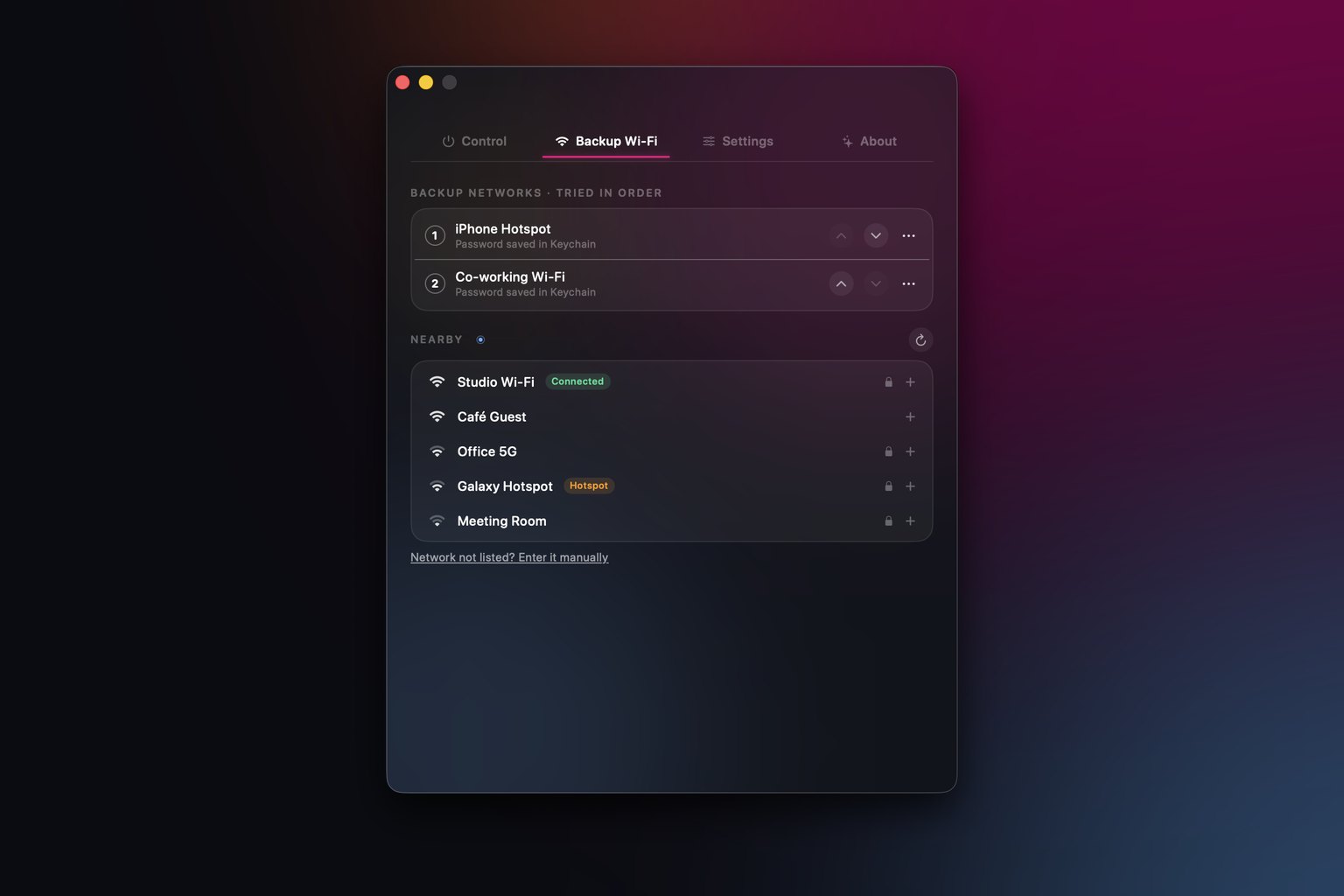
A Mac only auto-joins your iPhone's hotspot when it can't find any known Wi-Fi network, so a network that's in range but has no internet keeps it stuck. To fix it, set "Ask to join hotspots" to Automatic in Wi-Fi settings, make sure Instant Hotspot's requirements are met, and run Apple's Wi-Fi diagnostics if your Mac keeps dropping the connection. If you need the Mac to switch to the hotspot whenever the internet itself drops, you need a failover tool such as Liddy.
Last updated: 22 November 2026
I work from cafés, trains and client offices a lot, and the most annoying failure isn't Wi-Fi going away completely. It's Wi-Fi that's still "connected" but not passing any traffic. The Mac sits there happily on a dead network while my iPhone, with perfectly good mobile data, is in my pocket. This guide covers why that happens, what Apple's built-in settings can and can't do, and how I fixed it for good.
All the setting names below come from Apple Support pages, linked in the Sources section. Apple's labels change between macOS versions, so if yours look slightly different, check the version picker on Apple's guide.
Why doesn't my Mac auto-connect to my iPhone hotspot?
There are four common reasons:
- The Mac doesn't think it needs to. Apple describes the "Ask to join hotspots" setting as joining an available Personal Hotspot "when no known Wi-Fi networks are found". As I read that, if a known network is in range (even one with no working internet), the Mac stays on it.
- Instant Hotspot's requirements aren't met. The devices need to be near each other, with Wi-Fi and Bluetooth on, and signed in to the same Apple Account (or set up through Family Sharing).
- The hotspot isn't visible. For a device that isn't on your Apple Account, Apple says Allow Others to Join must be turned on in Personal Hotspot settings.
- The setting is on Ask to Join or Never. The fully automatic option on the Mac needs a recent macOS (more on that below).
What is Instant Hotspot and what does it need?
Instant Hotspot lets your Apple devices join your iPhone's Personal Hotspot without typing its password. According to Apple, you need:
- an iPhone or iPad (Wi-Fi + Cellular) with a carrier plan that includes Personal Hotspot
- both devices near each other, with Wi-Fi and Bluetooth turned on
- both devices signed in to the same Apple Account, or family members set up via Family Sharing
Apple also notes that when you use Instant Hotspot, the "Allow Others to Join" setting doesn't need to be on, and you won't be asked for the password.
To join manually on a Mac, click Wi-Fi in the menu bar or Control Centre, then choose your iPhone's name under Personal Hotspots. When it connects, the Wi-Fi icon changes to the Personal Hotspot icon.
How do I make my Mac join my iPhone hotspot automatically?
Apple calls this Auto-Join Hotspot. On the Mac:
- Click Wi-Fi in the menu bar or Control Centre, then choose Wi-Fi Settings. (Or go to Apple menu > System Settings > Wi-Fi.)
- Scroll down to Ask to join hotspots.
- Choose from the pop-up menu: Never, Ask To Join or Automatic.
Apple's support article says the Automatic setting is available in macOS Tahoe 26 or later. On earlier versions, Ask to Join is the most you get: the Mac shows a message that your hotspot is available and asks whether to join it.
On the iPhone side, family members can be set to Automatic or Ask for Approval under Settings > Personal Hotspot > Family Sharing.
What Auto-Join Hotspot won't do
This setting is designed for when there's no Wi-Fi around. Apple says it joins your hotspot "whenever a Wi-Fi network isn't available". It isn't described as an internet-loss failover. If your café Wi-Fi is up but its connection behind the router has died, there's nothing in Apple's description that says the Mac will leave it for your hotspot.
How do I set Wi-Fi priority on a Mac?
There's no drag-and-drop priority list in the current Wi-Fi settings documentation. What you can control, per Apple's Wi-Fi settings guide, is whether each known network is joined automatically:
- Open System Settings > Wi-Fi.
- Under Known Networks, click the More button (the three dots) next to a network.
- Choose Auto-Join to toggle automatic joining, or Forget This Network to remove it.
You can also click Details on the connected network and switch off Automatically join this network. In the Advanced panel, the Known Networks list offers the same options, plus Remove From List.
The practical trick: turn off Auto-Join for networks that are often flaky (a hotel's open network, a busy station's free Wi-Fi). That way, when you're out of range of the good networks, the Mac has no known network to cling to, and Ask to join hotspots kicks in.
There's also Ask to join networks (Off, Notify or Ask), which controls whether you're prompted about networks you haven't joined before.
What if my Mac can't see or join my iPhone hotspot?
Apple's troubleshooting steps, in order. Try connecting again after each one.
On the iPhone
- Go to Settings > Personal Hotspot and check Allow Others to Join is on.
- Note the Wi-Fi network name and password shown on that screen. Stay on that screen until the Mac connects.
- If you have an iPhone 12 or later, turn on Maximise Compatibility in Personal Hotspot settings. Apple warns this may reduce internet performance and Wi-Fi security for connected devices, so I'd only use it if you need it.
- Restart both devices and make sure both are on the latest software.
- As a last resort, Settings > General > Transfer or Reset iPhone > Reset > Reset Network Settings. Be warned: this also wipes saved Wi-Fi networks and passwords, mobile data settings, and VPN and APN settings.
If Personal Hotspot is greyed out, Apple says to check that mobile data is on, and that your carrier and plan support Personal Hotspot.
On the Mac
- Turn Wi-Fi off and back on.
- Make sure you pick the right network. The name matches your iPhone's name.
- If you get a password error, double-check it against the iPhone's Personal Hotspot screen.
Try USB instead
If Wi-Fi just won't behave, Personal Hotspot also works over a USB cable. Turn on Allow Others to Join, plug the iPhone into the Mac, tap Trust if asked, and the Mac should list iPhone USB under System Settings > Network. Apple's tip: switch Personal Hotspot off when you don't need it, or the Mac might connect to it every time you plug the iPhone in to charge.
Why does my Mac keep disconnecting from Wi-Fi?
This is a slightly different problem: the Mac is on a network, but the connection keeps dropping or stops working. Apple's article for this case suggests:
- Restart your Mac. It renews the IP address it was given by the network (the DHCP lease). You can also renew it manually.
- Check the date and time are set correctly.
- Update macOS, using another network if you need to.
- Check VPN or security software that monitors network connections. It can interfere.
- Check the router if you manage it: update its firmware, restart it, and use Apple's recommended router settings.
- Use Wi-Fi Recommendations. Click Wi-Fi in the menu bar or Control Centre. If there's a Wi-Fi Recommendations item, your Mac has spotted a problem. Note that Apple says this isn't available for personal hotspots.
- Run Wireless Diagnostics. Quit your apps, hold Option, click the Wi-Fi menu and choose Open Wireless Diagnostics. It analyses the connection, lists issues and suggested fixes, and doesn't change your settings.
- Try a different network, or contact your provider to rule out an outage.
If none of that helps and the problem is the venue's network rather than your Mac, the only real fix is a second connection you can fall back to. That's usually your phone.
How do I fail over to my hotspot automatically when the internet drops?
This is the gap in the built-in tools. macOS will join your hotspot when no known Wi-Fi is around, but it doesn't check whether your current network actually reaches the internet and switch for you.
That's why we built backup Wi-Fi failover into Liddy, our free menu bar app at Metamindz. While Liddy is on, it:
- checks for real internet access every 30 seconds (every 5 seconds while offline) by loading Apple's public test page
- after 15 seconds offline, tries your backup networks in the order you chose, skipping the one you're already on
- joins the next one and confirms the internet is back, with a 45-second cooldown between rounds
- notifies you when it switches
You pick backup networks from a live scan of what's nearby (it rescans every 10 seconds) or type them in. Passwords are stored in the macOS Keychain. macOS requires Location permission for any app to see Wi-Fi network names, so Liddy asks for it, and it never stores or sends your location.
Two honest limits:
- Liddy can't switch on your iPhone's Personal Hotspot. Apple offers no way for a Mac app to do that. The hotspot needs to be on, with Allow Others to Join enabled, so the Mac can see it.
- Failover only runs while Liddy is on. Liddy's main job is keeping a MacBook awake, including with the lid closed, and the Wi-Fi checks run alongside that.
For me, the combination matters most when I leave something running, such as a long build or Claude Code working with the lid closed. A Mac that's awake but offline is just as stuck as one that's asleep. If that's you too, download Liddy free. If you want to work through a dropped connection rather than avoid it, I've also written about what you can do when coding offline.
Is it bad to stay on a hotspot all day?
It's fine technically, but watch two things. First, data: Apple notes that some features that need Wi-Fi, such as iCloud backups or iCloud Photos uploads, might not work over Personal Hotspot, and anything else you sync will eat into your mobile allowance. Second, keep an eye on your iPhone's battery if you're relying on it for hours.
If you're keeping a MacBook awake for long stretches too, how to keep a Mac awake with the lid closed covers heat and battery safety.
Sources
- Apple Support, Use Instant Hotspot to connect to your Personal Hotspot: https://support.apple.com/en-us/109321
- Apple Support, Connect to the Personal Hotspot of an iPhone or iPad: https://support.apple.com/en-us/111785
- Apple Support (UK), If Personal Hotspot is not working on your iPhone or iPad: https://support.apple.com/en-gb/119837
- Apple Support (UK), Wi-Fi settings on Mac: https://support.apple.com/en-gb/guide/mac-help/mh11935/mac
- Apple Support (UK), If your Mac isn't connecting to the internet over Wi-Fi: https://support.apple.com/en-gb/101588
- Apple Support (UK), Use Wireless Diagnostics on your Mac: https://support.apple.com/en-gb/guide/mac-help/mchlf4de377f/mac
Frequently asked questions
Why won't my Mac automatically connect to my iPhone hotspot?
Most often because it can still see a known Wi-Fi network, and Apple's Auto-Join Hotspot only steps in when no known network is found. Also check both devices have Wi-Fi and Bluetooth on, use the same Apple Account, and that "Ask to join hotspots" isn't set to Never.
Where is the Auto-Join Hotspot setting on a Mac?
Go to System Settings > Wi-Fi and scroll to "Ask to join hotspots". You can choose Never, Ask To Join or Automatic. Apple says Automatic is available in macOS Tahoe 26 or later.
Do I need "Allow Others to Join" turned on?
Not for Instant Hotspot between devices on the same Apple Account or Family Sharing group, according to Apple. You do need it for other devices, such as a Mac on a different Apple Account or a Windows PC. Tools that join the hotspot like a normal Wi-Fi network, including Liddy, also need it on so the network is visible.
What does Maximise Compatibility do?
It's an option in Personal Hotspot settings on iPhone 12 and later. Apple suggests turning it on if other devices can't connect over Wi-Fi, and warns that it may reduce internet performance and Wi-Fi security for connected devices.
Can my Mac switch to my hotspot when the café Wi-Fi stops working?
Not reliably with built-in settings, because macOS doesn't switch away from a known network just because its internet has stopped working. Liddy checks real internet access and moves to your backup networks, such as your iPhone hotspot, after 15 seconds offline. The hotspot must already be switched on.
Can a Mac app turn on my iPhone's Personal Hotspot?
Not a third-party app. Apple doesn't offer a way for Mac apps to switch on an iPhone's Personal Hotspot, which is why Liddy needs it already on with Allow Others to Join enabled. Apple's own Instant Hotspot is the built-in route for joining your hotspot without a password when the devices share an Apple Account.