
How to stop your Mac from sleeping: settings, Terminal and apps
To stop your Mac from sleeping, open System Settings > Battery > Options and turn on "Prevent automatic sleeping on power adapter when the display is off", then set longer times in System Settings > Lock Screen. For a one-off job (a download, a build, a long render), run caffeinate in Terminal or use a keep-awake menu bar app instead, so you do not change your settings permanently.
Last updated: 22 November 2026
I get asked this a lot, usually by someone whose overnight upload died at 2am because the Mac decided it was bedtime. macOS gives you three ways to deal with it: change the system settings, use a Terminal command, or use an app. Each one suits a different situation, and closing the lid is a separate problem altogether. This guide covers all of them, with the exact labels Apple uses today.
Why does my Mac go to sleep on its own?
macOS puts your Mac to sleep after a period of inactivity to save power. "Inactivity" means no keyboard or mouse input. A download, a build or a script running in the background does not count as you being active, which is why long jobs get cut off.
Some apps tell macOS they need the Mac awake, using something called a power assertion. Many apps do not, so for those you need to handle it yourself.
There are two separate timers to think about:
- Display sleep: when the screen turns off.
- System sleep: when the whole Mac stops working (network, CPU, everything).
On modern macOS, the main control you see in System Settings is the display timer. Whether the system sleeps when the display turns off depends on the Battery (laptop) or Energy (desktop) settings below.
How do I change Mac sleep settings in System Settings?
These steps match Apple's own guide for macOS Sonoma 14 and later. I checked the labels against Apple's current Mac User Guide and the Sonoma version, and they are the same.[1]
Step 1: Set the display timers in Lock Screen
- Choose Apple menu > System Settings.
- Click Lock Screen in the sidebar (you may need to scroll down).
- Click the pop-up menu next to "Turn display off on battery when inactive" and choose a longer time.
- Click the pop-up menu next to "Turn display off on power adapter when inactive" and choose a longer time (or Never, if your Mac lists it).
On the same screen you will see "Require password after screen saver begins or display is turned off".[2] Leave that on if anyone else can reach your Mac. Keeping a Mac awake and keeping it unlocked are two different decisions.
Step 2 (MacBook): Stop sleeping when the display is off
- Choose Apple menu > System Settings.
- Click Battery in the sidebar.
- Click Options.
- Turn on "Prevent automatic sleeping on power adapter when the display is off".
Apple describes this option as preventing your Mac "from sleeping when it's plugged in and its display is off".[3] Note the words "plugged in". There is no matching switch for battery power in these settings. If you need a MacBook to stay awake on battery, use caffeinate or an app (both covered below).
Step 2 (iMac, Mac mini, Mac Studio, Mac Pro): Energy settings
- Choose Apple menu > System Settings.
- Click Energy in the sidebar (called Energy Saver on macOS Sonoma).
- Turn on "Prevent automatic sleeping when the display is off".[1]
Optional: Wake for network access
In the same Options panel (laptop) or Energy panel (desktop) you will find "Wake for network access". This lets the Mac wake briefly so other devices can reach shared services such as printers or shared music.[3] It does not keep the Mac awake for your own downloads, so it is not the fix most people are looking for.
Can I turn off sleep mode on a Mac completely?
Yes, if your Mac is plugged in. The settings above effectively do it: a long (or Never) display timer plus "Prevent automatic sleeping on power adapter when the display is off" means the Mac keeps running on the charger indefinitely.
If you prefer Terminal, pmset is Apple's documented tool for power settings. Its manual says a value of 0 sets the idle time "to never" for sleep, disksleep and displaysleep, and that it must be run as root.[4] For example, to stop system sleep on the charger only:
sudo pmset -c sleep 0
-c means charger, -b means battery and -a means all power sources. To see what is currently set, run pmset -g (no admin rights needed). If an app is holding the Mac awake, the output says so on the sleep line, for example:
sleep 0 (sleep prevented by caffeinate)
I would not turn sleep off permanently on battery. A Mac that never sleeps on battery will happily run itself flat in a bag. For battery use, a timed session is safer.
How do I keep my Mac awake temporarily with Terminal?
macOS ships with a command called caffeinate. While it runs, your Mac will not idle sleep. When you stop it, normal sleep comes back. Nothing to install, nothing to undo.
Open Terminal and run:
caffeinate
Your Mac now stays awake until you press Ctrl+C. A few variations I use all the time:
| Command | What it does |
|---|---|
caffeinate |
Prevents idle sleep until you press Ctrl+C |
caffeinate -d |
Also keeps the display on |
caffeinate -t 3600 |
Stays awake for 3,600 seconds (one hour), then stops |
caffeinate -i make build |
Stays awake only while make build runs |
caffeinate -s |
Prevents system sleep, but only on AC power |
All of these come from Apple's caffeinate manual page.[5] The "run a command under it" form is my favourite: the Mac stays awake exactly as long as the job takes, then goes back to normal.
I wrote a full guide covering every flag, timeouts, waiting on a process ID, shell aliases and how to check it is working: the caffeinate command on Mac.
What about a menu bar app?
If you do not want Terminal open, a menu bar app gives you a one-click toggle. A few options:
- KeepingYouAwake: free and open source. Its README describes it as "a small wrapper around Apple's caffeinate command line utility", with timed or indefinite sessions.[6]
- Amphetamine: a free keep-awake app on the Mac App Store, with an optional helper called Amphetamine Enhancer that adds a fail-safe for its closed-display mode.[7]
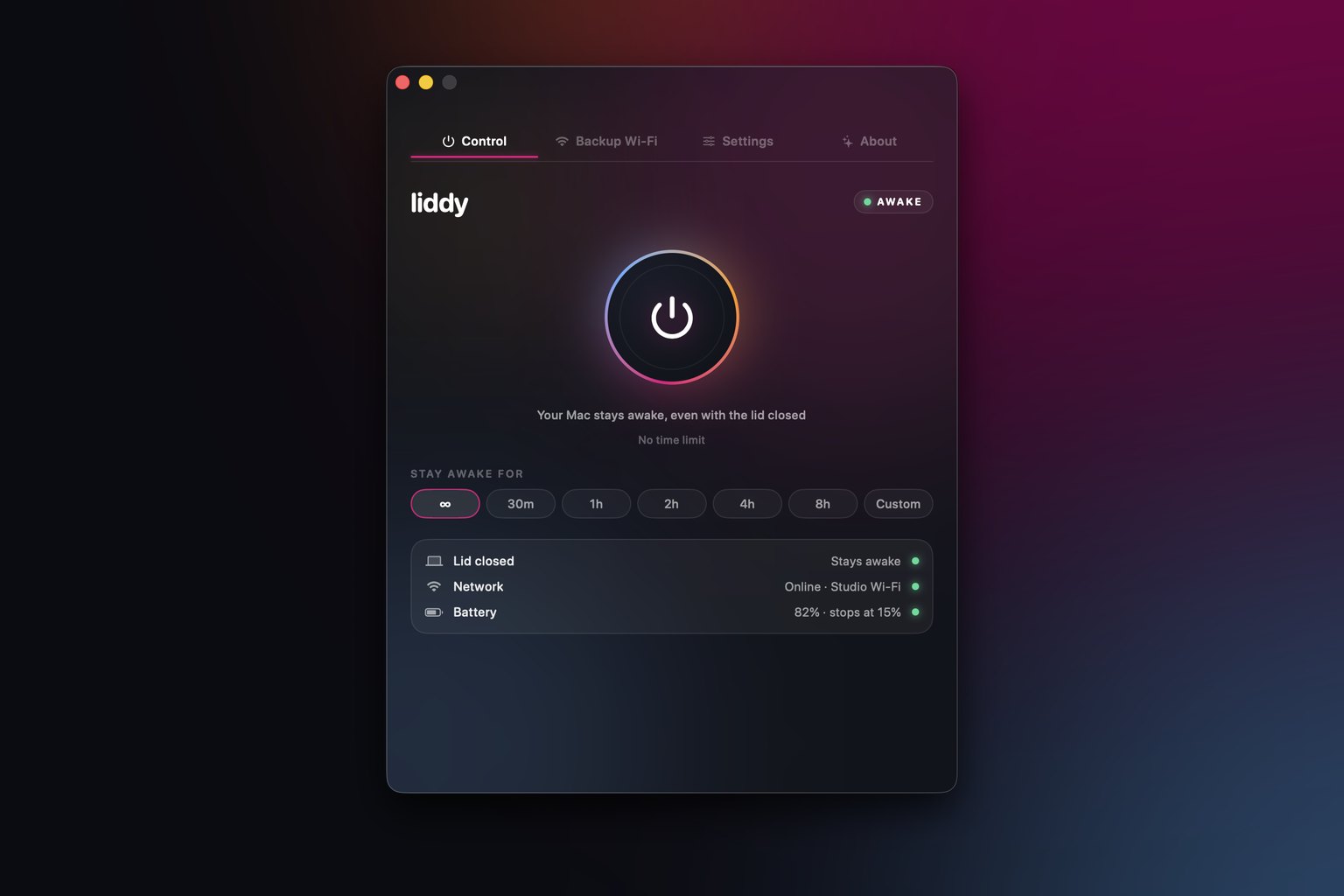
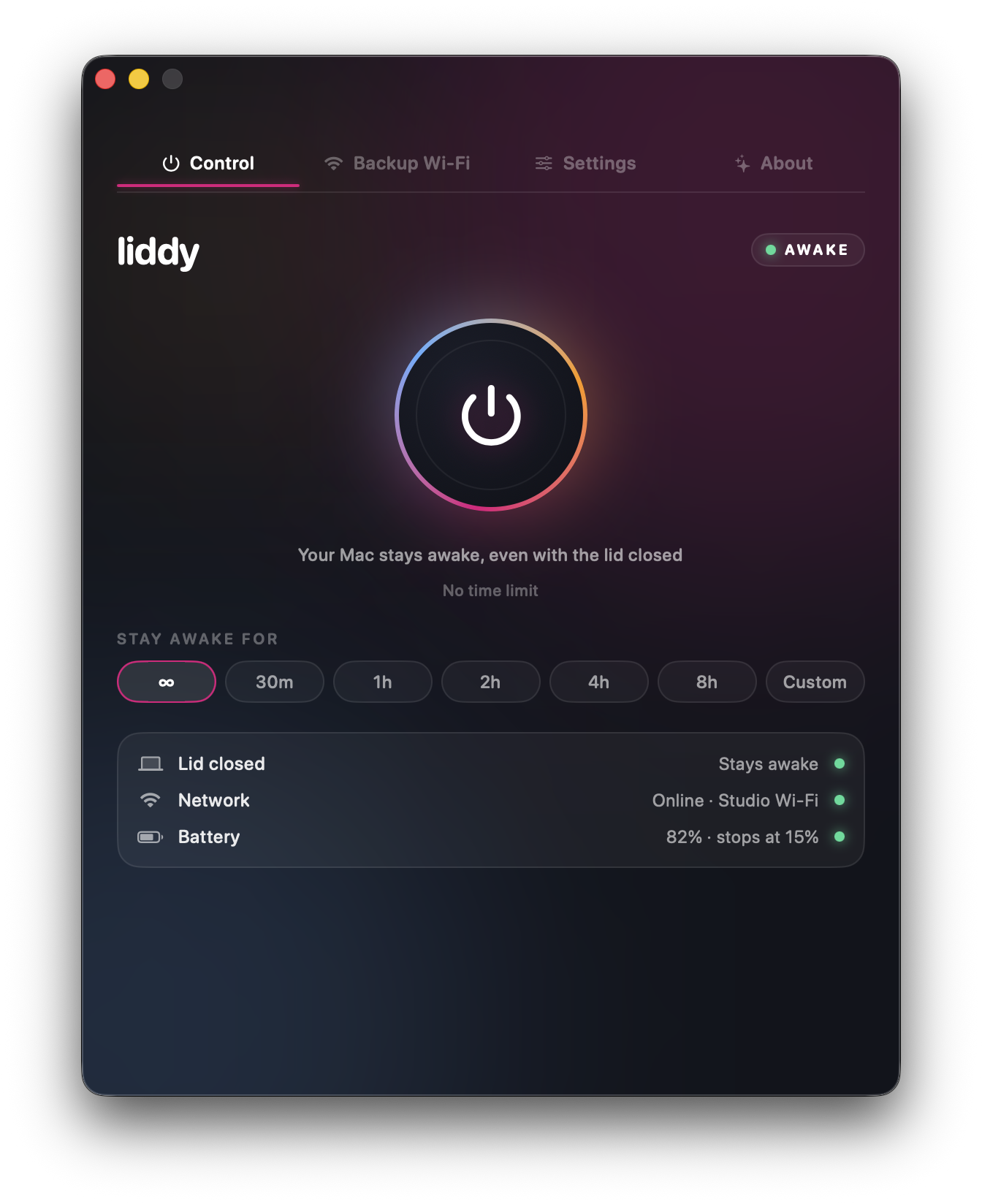
- Liddy: our own free menu bar app at Metamindz. It keeps the Mac awake with timers (30 minutes up to 24 hours, or unlimited) and a battery cut-off that switches itself off at a level you choose (15% by default) when you are on battery.
I compare these properly, feature by feature, in Amphetamine alternatives for Mac.
Why does my Mac still sleep when I close the lid?
Everything above handles idle sleep with the lid open. Closing the lid on a MacBook is a separate case. By default, a closed MacBook sleeps, whatever your Battery and Lock Screen settings say, and caffeinate does not change that.
Apple's supported way to use a MacBook closed is closed-display (clamshell) mode: connect it to power, an external display, and an external keyboard and mouse or trackpad.[8][9] If any of those is missing, the Mac sleeps when the lid shuts.
If you want the Mac to keep working with the lid closed and no external display (on a train, in a bag, or with the screen shut while an AI agent runs overnight), you need something that changes the sleep behaviour itself. That is what we built Liddy for. It uses a small helper you approve once in System Settings, keeps the Mac awake with the lid closed, on battery and without a display, and puts normal sleep back the moment you switch it off, quit it or restart.
The full breakdown of every option (Apple's clamshell mode, the undocumented pmset disablesleep setting, Amphetamine with Enhancer, and Liddy), plus heat and battery safety, is in how to keep a Mac awake with the lid closed. If you are specifically after running without a monitor, see MacBook clamshell mode without an external monitor.
Which option should I use?
Here is how I decide:
| Situation | Best option |
|---|---|
| Desktop Mac that should never sleep | Energy settings: "Prevent automatic sleeping when the display is off" |
| MacBook on the charger all day at a desk | Battery > Options plus longer Lock Screen timers |
| One long download, build or render | caffeinate -i <command> or caffeinate -t <seconds> |
| Quick toggle without Terminal, lid open | A menu bar app (KeepingYouAwake, Amphetamine, Liddy) |
| Lid closed with external display, keyboard and power | Apple's closed-display mode |
| Lid closed, no display, possibly on battery | Liddy, or pmset disablesleep if you are comfortable with the risks |
A few practical points, whatever you pick:
- Keep the lock on. Staying awake should not mean staying unlocked.
- Watch the heat. A Mac working hard in a closed bag has nowhere to send its heat. Give it airflow.
- Prefer timed sessions on battery. A timeout or a battery cut-off means a forgotten session does not drain the Mac to zero.
- Undo what you change. If you used
sudo pmset, write down what you changed so you can put it back.
Ready to stop fighting sleep?
For lid-open, plugged-in use, the built-in settings and caffeinate are free and do the job well. If you also want a MacBook to keep going with the lid closed, on battery, with a timer and a battery cut-off, Liddy is free, signed and notarised by Apple, and runs on macOS 14 Sonoma or later on Apple silicon and Intel.
Sources
- Apple Support, "Set sleep and wake settings for your Mac": https://support.apple.com/guide/mac-help/set-sleep-and-wake-settings-mchle41a6ccd/mac (macOS Sonoma version: https://support.apple.com/guide/mac-help/mchle41a6ccd/14.0/mac/14.0)
- Apple Support, "Change Lock Screen settings on Mac": https://support.apple.com/guide/mac-help/change-lock-screen-settings-on-mac-mh11784/mac
- Apple Support, "Change Battery settings on a Mac laptop": https://support.apple.com/guide/mac-help/change-battery-settings-mchlfc3b7879/mac
- Apple, pmset(1) manual page (run
man pmsetin Terminal) - Apple, caffeinate(8) manual page (run
man caffeinatein Terminal) - KeepingYouAwake on GitHub: https://github.com/newmarcel/KeepingYouAwake
- Amphetamine Enhancer on GitHub: https://github.com/x74353/Amphetamine-Enhancer
- Apple Support, "Connect an external display to MacBook Pro": https://support.apple.com/guide/macbook-pro/connect-an-external-display-apd8cdd74f57/mac
- Apple Support, "If your external display is dark or low resolution": https://support.apple.com/en-us/102501
Frequently asked questions
How do I stop my Mac from going to sleep when I am not using it?
Open System Settings > Lock Screen and set longer times for "Turn display off on battery when inactive" and "Turn display off on power adapter when inactive". On a MacBook, also turn on "Prevent automatic sleeping on power adapter when the display is off" in System Settings > Battery > Options. On a desktop Mac, the equivalent switch is in System Settings > Energy.
Can I stop my MacBook sleeping on battery?
The System Settings switch only covers the power adapter. On battery, run caffeinate in Terminal (press Ctrl+C to stop) or use a keep-awake app. Use a timed session, such as caffeinate -t 3600 for one hour, so a forgotten session does not drain the battery.
Does caffeinate keep my Mac awake with the lid closed?
No. caffeinate prevents idle sleep while the lid is open. With the lid closed, a MacBook sleeps unless it is in Apple's closed-display mode (power, external display, keyboard and mouse) or a tool such as Liddy changes the sleep behaviour. See our guide on keeping a Mac awake with the lid closed for all the options.
Is it bad to never let my Mac sleep?
On a desktop or a plugged-in MacBook, staying awake mainly costs electricity and some heat. On battery, it drains the charge, so use timers or a battery cut-off. Whatever you do, keep "Require password after screen saver begins or display is turned off" switched on so an awake Mac is still a locked Mac.
How do I check what is keeping my Mac awake or letting it sleep?
Run pmset -g in Terminal. The sleep line shows your current timer and, if any app is preventing sleep, which one. For full detail, pmset -g assertions lists every process holding a power assertion, including caffeinate and keep-awake apps.