
MacBook clamshell mode: how it works, and how to use it without an external monitor
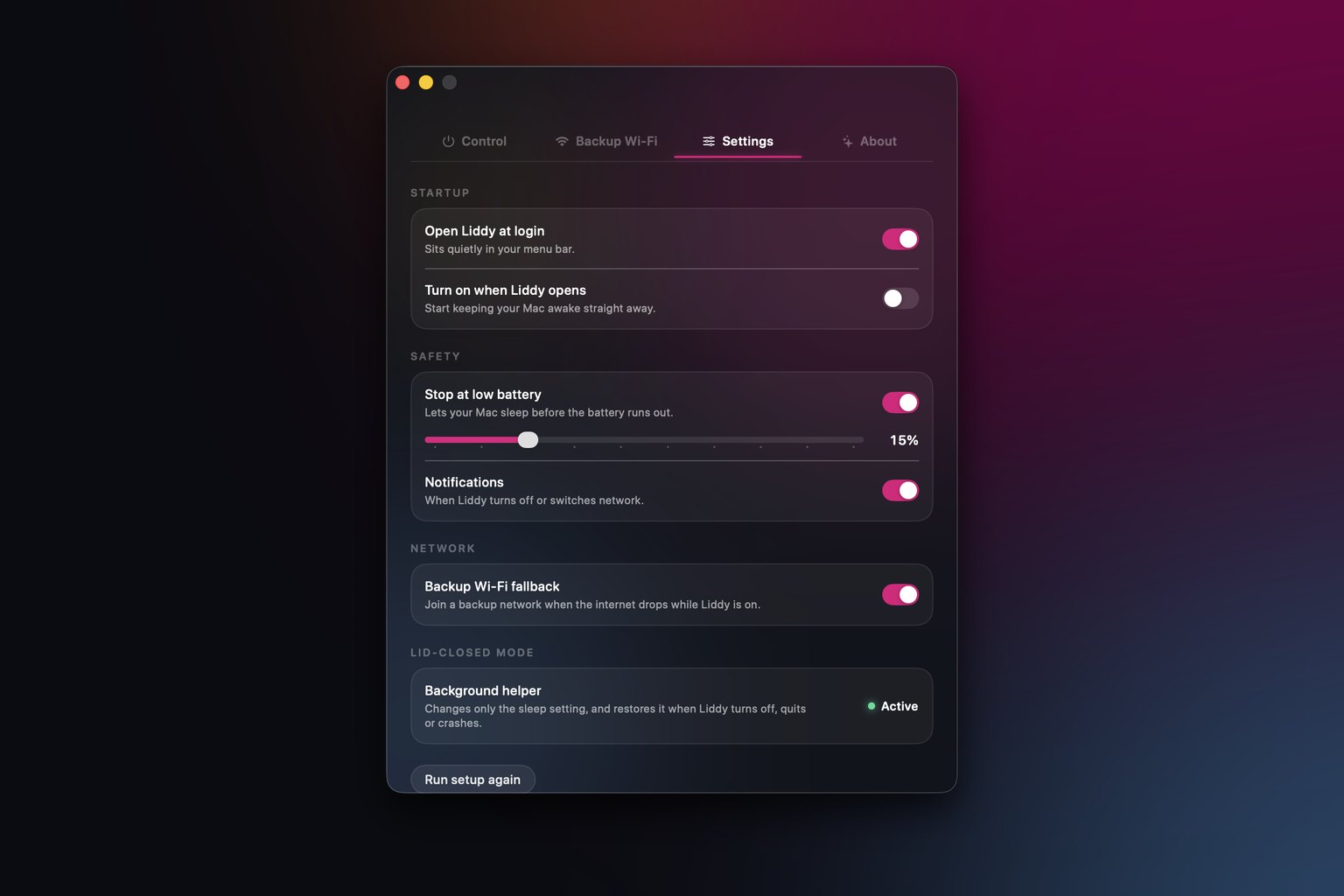
MacBook clamshell mode (Apple calls it closed-display mode) lets you keep using your MacBook with the lid closed while an external display and a keyboard or mouse are connected, and Apple recommends it is plugged into power too. Unplug the display and the Mac goes to sleep. To run a closed MacBook with no external monitor, you have to switch off system sleep with pmset disablesleep or an app such as Liddy.
Last updated: 22 November 2026
Clamshell mode is how a lot of us work at a desk: laptop shut, big monitor on, proper keyboard. It is also where people get confused, because the same closed lid that works fine at the desk sends the Mac straight to sleep the moment you unplug the monitor. In this guide I will go through what Apple officially supports, why it behaves the way it does, how to run closed with no display at all, and a few tips for a smoother desk setup.
What is clamshell mode on a MacBook?
"Clamshell mode" is the common name. Apple's user guides describe it without a special label: after you connect a display to your MacBook, you can close the lid and continue to use it with connected accessories[1][2]. You will also see it called closed-display mode or closed-lid mode.
In practice it means:
- The internal screen is off because the lid is shut.
- The Mac drives one or more external displays.
- You type and point with an external keyboard and mouse or trackpad.
What does Apple officially require for clamshell mode?
Taken together, Apple's pages list three things:
- An external display. The MacBook Pro and MacBook Air guides both say you can keep working with the lid closed when you have an external display and accessories connected[1][2].
- A keyboard and mouse (or trackpad). Apple's example of "accessories" is a keyboard and mouse[1].
- Power. Apple's display troubleshooting article says that if a display is connected to a Mac laptop with a closed lid, make sure the Mac is connected to power and using an external keyboard and mouse[3].
How do I set up clamshell mode?
- Connect your MacBook to its power adapter.
- If your display needs mains power, plug it in and switch it on.
- Connect the display to a Thunderbolt/USB-C or HDMI port, depending on your model.
- Connect a keyboard and mouse or trackpad, wired or Bluetooth.
- Check the picture in System Settings > Displays, where you can set resolution, brightness, and whether to extend or mirror your desktop[1].
- Close the lid.
That is it. Nothing to install and nothing to undo.
Why does my MacBook sleep in clamshell mode without a monitor?
Because the closed lid is a sleep trigger, and the external display is what tells macOS you are still using the machine. Take the display away and macOS falls back to the normal rule: lid closed, go to sleep.
This is also why the usual "keep awake" tricks do not help here. The caffeinate command creates assertions that prevent idle sleep, and its -s flag, which prevents system sleep, is "valid only when system is running on AC power" according to its manual page[4]. That is about idle timers, not the lid. Some keep-awake apps say this openly: KeepingYouAwake's README states it only prevents sleep on desktop Macs and portable Macs with an open lid[5]. I go deeper on caffeinate in the caffeinate command guide.
How do I use a MacBook with the lid closed and no external monitor?
There is no Apple setting for this, so you have to switch system sleep off. Two ways.
Option 1: pmset disablesleep (Terminal)
macOS has a disablesleep setting in pmset. It is not documented in the pmset manual page, but it is widely used and needs admin rights.
# Turn system sleep off (lid closed included)
sudo pmset -a disablesleep 1

# Check: look for "SleepDisabled 1"
pmset -g

# Turn normal sleep back on
sudo pmset -a disablesleep 0
Things to know before you rely on it:
- It stays on until you turn it off. Forget the last command and your Mac will not sleep at all, even in a bag.
- It is undocumented, so it could change in a future macOS release.
- There is no timer and no battery limit.
Option 2: Liddy (menu bar app)
Liddy is a free macOS menu bar app we built at Metamindz for exactly this case: a MacBook kept awake with the lid closed, on battery, with no external display.
Under the hood it uses the same mechanism, made safer:
- You approve a small privileged helper once (System Settings > General > Login Items & Extensions > Allow in the Background).
- When Liddy is on, the helper runs
pmset -a disablesleep 1; when it is off,pmset -a disablesleep 0. It only accepts requests from the signed Liddy app. - Normal sleep is restored when Liddy turns off, quits, crashes or the Mac restarts, because the helper resets it at boot and whenever the app's connection drops.
- On battery, it turns itself off at a level you choose (15% by default, adjustable from 5 to 50%) and notifies you.
- Timers from 30 minutes to 8 hours, unlimited, or custom in 15-minute steps up to 24 hours.
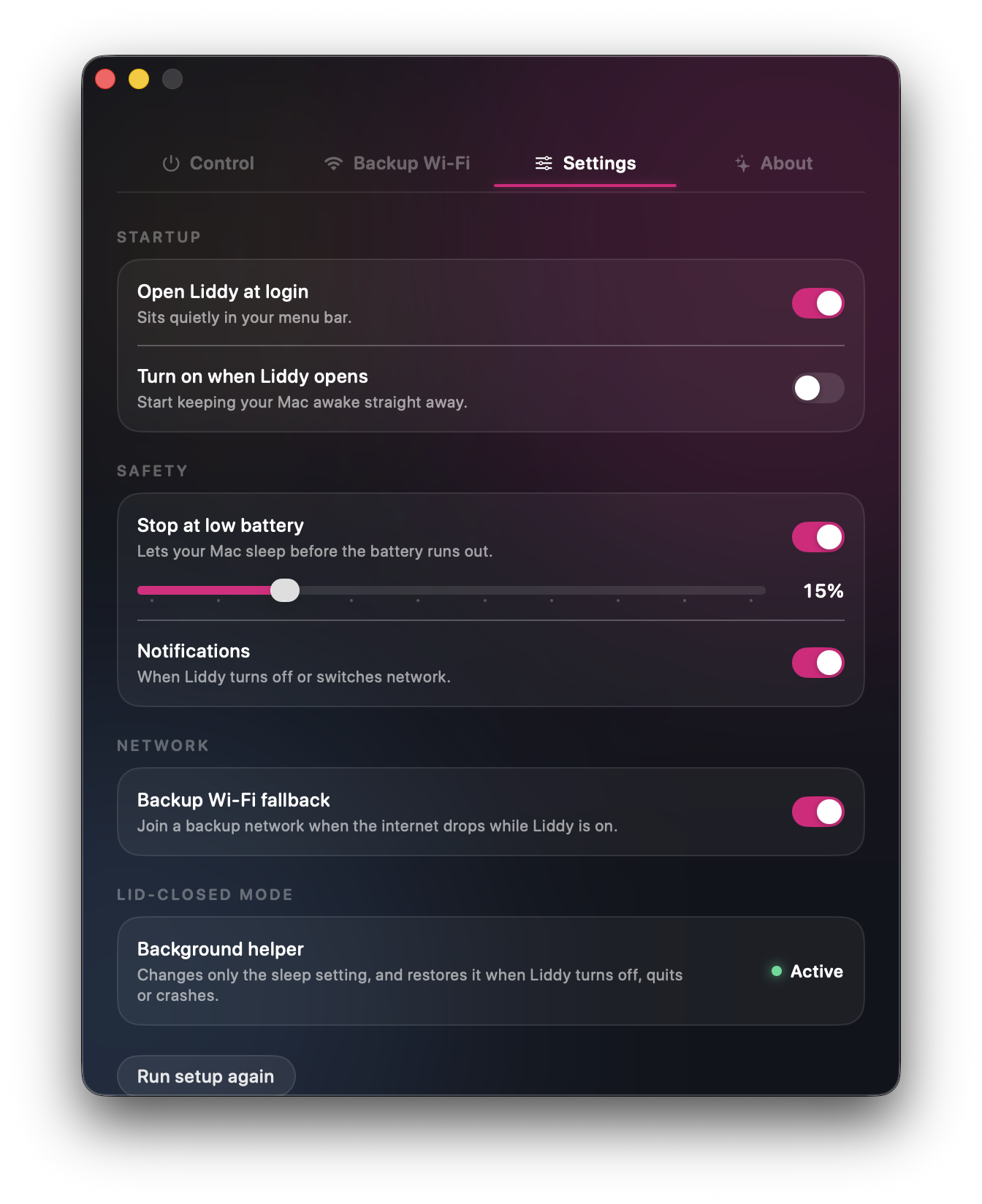
It needs macOS 14 Sonoma or later, runs on Apple silicon and Intel, and is signed and notarised by Apple. No account or subscription; the download page asks for your email. More detail on all the options, including Amphetamine with its Enhancer helper, is in my guide to keeping a Mac awake with the lid closed.
Clamshell mode vs no-display closed lid: which do I need?
| Apple clamshell mode | pmset disablesleep |
Liddy | |
|---|---|---|---|
| External display needed | Yes | No | No |
| Keyboard and mouse needed | Yes | No | No |
| Power | Apple says connect power | Optional | Optional |
| Installs anything | No | No | Yes, a menu bar app |
| Turns itself off | When you unplug the display | No | Timer, battery cut-off, quit, crash or restart |
| Best for | Desk setup | One-off jobs, comfortable in Terminal | Regular closed-lid use, on the move, overnight jobs |
If you are at a desk with a monitor, use Apple's mode. If you want the Mac to keep working in a bag, on a shelf or overnight with nothing plugged in, you need one of the other two.
Is clamshell mode bad for a MacBook?
Running with the lid closed is fine when the Mac can stay cool. Apple's guidance on laptop operating temperatures is the one to follow[6]:
- Use it where the ambient temperature is between 10° and 35° C.
- Put it on a stable surface that allows good ventilation, not on a bed, pillow or under bedding.
- Do not put anything over the keyboard.
- Use Apple-authorised power adapters.
- If the fans run for a long time, check Activity Monitor for runaway processes.
Some practical additions from my own setup:
- Give it some air at the desk. A vertical stand or a laptop riser works well for clamshell setups.
- No heavy jobs in a closed bag. Running without a display often means running somewhere enclosed. A light task is fine; a long CPU-heavy build is not something I would zip into a rucksack.
- Mind the battery. On battery, a Mac that cannot sleep keeps draining until it is empty. Set a timer, set a battery floor, and save your work first.
Tips for a better clamshell setup with an external monitor
These come from Apple's own display guidance:
- Check how many displays your Mac supports. It depends on the chip, and Apple lists it per model[1].
- With several displays, connect the highest-resolution one first[1].
- Allow the accessory. On Mac laptops with Apple silicon, macOS might ask you to allow the display to connect. If you do not, it stays dark[3].
- Display dark after closing the lid? Apple suggests checking cables, sleeping and waking the Mac (on a laptop, close the lid for a few seconds and open it again), or holding Option in System Settings > Displays to show the Detect Displays button[3].
- Going through a hub or dock? If the display misbehaves, Apple suggests connecting it directly to a port on your Mac[3].
- Cables and adapters matter. A cable or adapter that does not support your display's resolution and refresh rate can leave it dark or at a lower setting[3].
When is closed-lid mode without a monitor actually useful?
A few cases where I use it every week:
- Long builds and test runs while I move from the desk to a meeting.
- AI coding agents that keep working on a task list overnight. I wrote up the full setup in running Claude Code with the lid closed.
- Big downloads, uploads and backups that would otherwise stop when the Mac sleeps.
- Staying online on the move, where Liddy's backup Wi-Fi failover can switch to your iPhone hotspot if the main network drops (the hotspot has to be on with "Allow Others to Join" enabled, since Apple offers no way for apps to switch it on).
If you only want to stop your Mac sleeping with the lid open, that is a different and simpler problem: see how to stop a Mac from sleeping.
If you want a closed lid without a monitor and without remembering Terminal commands, download Liddy free.
Sources
- Apple Support, Connect an external display to MacBook Pro: https://support.apple.com/guide/macbook-pro/connect-an-external-display-apd8cdd74f57/mac
- Apple Support, Connect an external display to MacBook Air: https://support.apple.com/guide/macbook-air/connect-an-external-display-apd8cdd74f57/mac
- Apple Support, If your external display is dark or low resolution: https://support.apple.com/en-us/102501
- Apple, caffeinate(8) manual page (run
man caffeinatein Terminal). - KeepingYouAwake README, GitHub: https://github.com/newmarcel/KeepingYouAwake
- Apple Support, Keep your Mac laptop within acceptable operating temperatures: https://support.apple.com/en-us/102336
Frequently asked questions
Can you use MacBook clamshell mode without an external monitor?
Not with Apple's built-in closed-display mode, which needs an external display connected. Without one, the Mac sleeps when you close the lid. You can work around it by turning off system sleep with sudo pmset -a disablesleep 1 or with an app like Liddy that does this and turns it back off for you.
Does clamshell mode work on battery?
Apple's troubleshooting guidance says a closed Mac laptop driving an external display should be connected to power. If you want a closed lid on battery, use pmset disablesleep or Liddy, and keep an eye on the battery, because the Mac will keep using power until you stop it.
Do I need a keyboard and mouse for clamshell mode?
Apple's guides describe closed-lid use with an external display and accessories such as a keyboard and mouse, and its troubleshooting article says to use an external keyboard and mouse. Bluetooth or wired both count.
Why does my external monitor go black when I close my MacBook lid?
Check that the Mac is on power and has a keyboard and mouse connected, then check cables and adapters. Apple also suggests sleeping and waking the Mac, using Detect Displays (hold Option in System Settings > Displays), connecting directly instead of through a hub, and allowing the display to connect on Apple silicon laptops.
Is clamshell mode bad for the battery or the MacBook?
Apple supports using a MacBook with the lid closed in this mode, so the main thing is keeping it cool. Follow Apple's temperature advice: 10° to 35° C ambient, a stable surface with good ventilation, nothing over the keyboard. On battery with sleep disabled, the main risk is draining it, so use a timer or a battery cut-off.
How do I turn off clamshell mode?
Open the lid or unplug the external display. If you used pmset disablesleep to run without a monitor, run sudo pmset -a disablesleep 0. If you used Liddy, turn it off or quit it, and normal sleep comes back.