
The caffeinate command on Mac: every flag, with examples
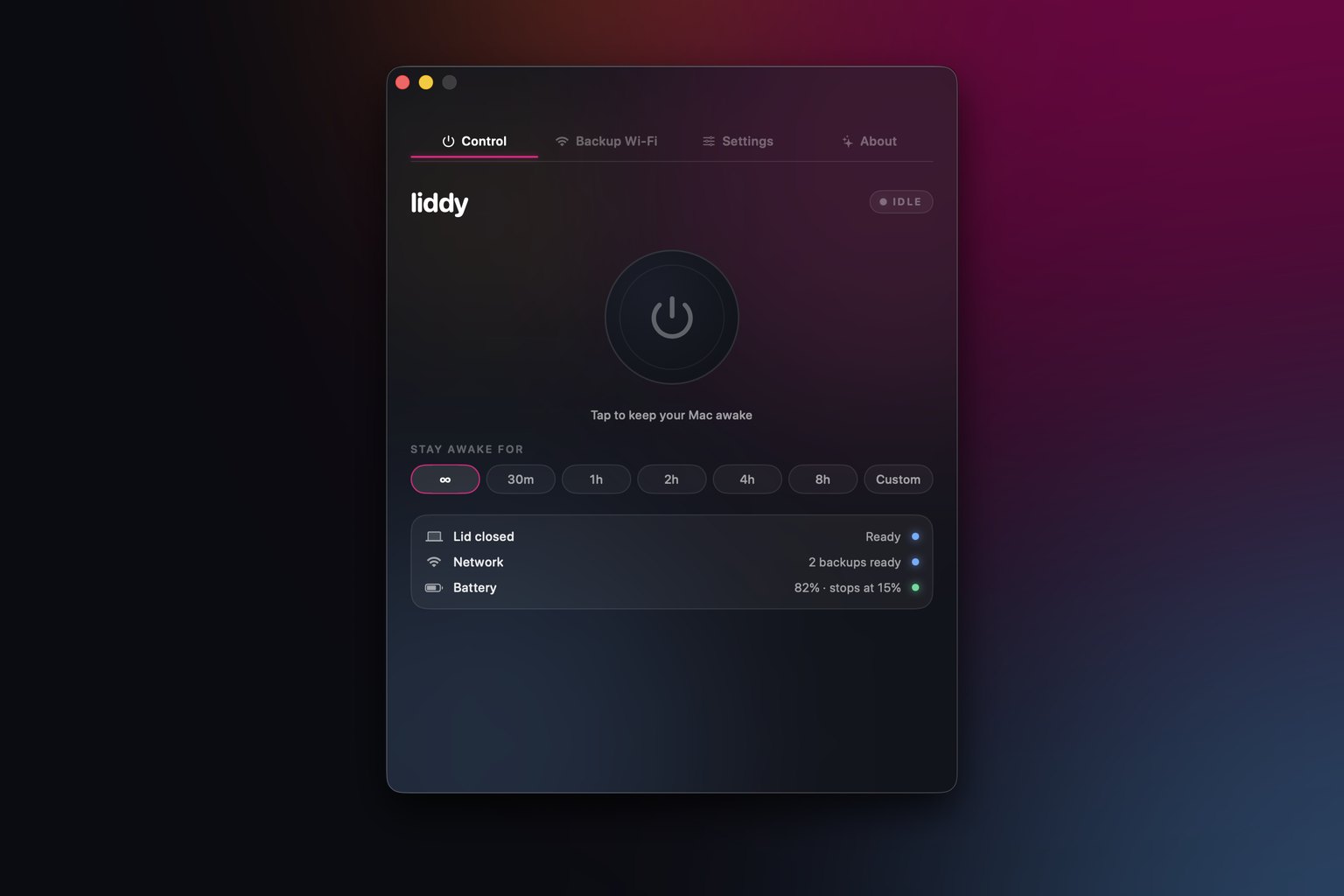
caffeinate is a command built into macOS that stops your Mac from sleeping for as long as it runs. Type caffeinate in Terminal to stay awake until you press Ctrl+C, use caffeinate -t 3600 to stay awake for an hour, or put a command after it (caffeinate -i make build) to stay awake exactly as long as that command takes.
Last updated: 22 November 2026
caffeinate is one of my favourite small macOS tools. It ships with every Mac, needs no admin rights, changes no settings, and cleans up after itself. I use it for long builds, big uploads, database restores and anything else I do not want macOS to interrupt. This guide covers every flag, the patterns I use day to day, how to check it is working, and the one thing it cannot do.
Everything here is based on Apple's own manual page, which you can read on any Mac by running man caffeinate.[1] The example output below was captured on macOS 26.
What does caffeinate do on a Mac?
The manual describes it as a tool to "prevent the system from sleeping on behalf of a utility".[1] Technically, it creates power assertions: requests to macOS that say "do not sleep yet". Other apps can hold the same kind of assertion, and pmset -g assertions (covered below) lists every one.
Three things make it useful:
- It is temporary. The assertions last only while
caffeinate(or the command you gave it) is running. Stop it and normal sleep returns. - It needs no
sudo. Unlike changing system settings withpmset, any user can run it. - It is already installed. It lives at
/usr/bin/caffeinate.
If you just want the System Settings route instead, see how to stop your Mac from sleeping.
How do I use caffeinate in Terminal?
Open Terminal (Applications > Utilities, or Spotlight) and run:
caffeinate
Nothing visible happens, and that is expected. The cursor sits there and your Mac will not idle sleep. Press Ctrl+C to stop it.
With no flags, the manual says caffeinate "creates an assertion to prevent idle sleep".[1] Idle sleep is the sleep that kicks in when you have not touched the keyboard or trackpad for a while. Your display can still turn off; the Mac itself keeps working.
What do the caffeinate flags mean?
Here is every option from the manual page, in plain English:[1]
| Flag | What it prevents or does | Example |
|---|---|---|
| (none) | Prevents idle system sleep | caffeinate |
-d |
Prevents the display from sleeping | caffeinate -d |
-i |
Prevents the system from idle sleeping | caffeinate -i |
-m |
Prevents the disk from idle sleeping | caffeinate -m |
-s |
Prevents the system from sleeping; valid only on AC power | caffeinate -s |
-u |
Declares the user is active; turns the display on if it is off | caffeinate -u -t 60 |
-t <seconds> |
Drops the assertion after this many seconds | caffeinate -t 7200 |
-w <pid> |
Releases the assertion when that process exits | caffeinate -w 4242 |
caffeinate -d: keep the display on
Use this when you want to watch something: a dashboard, logs scrolling past, a presentation. Without -d, the Mac stays awake but the screen still turns off on its normal timer.
caffeinate -i: prevent idle sleep
This is the one I use most, and it matches the default behaviour. I type it explicitly because it makes scripts easier to read.
caffeinate -m: keep the disk awake
This prevents the disk from idle sleeping. I rarely need it on its own, but it does no harm to include it.
caffeinate -s: prevent system sleep (on power only)
-s is stronger than -i: it asks macOS not to sleep at all, not just on idle. The catch is in the manual: this assertion "is valid only when system is running on AC power".[1] Unplug your MacBook and -s stops counting. It also does not override the lid (more on that below).
caffeinate -u: pretend someone is using the Mac
-u declares that a user is active. If the display is off, it turns it on and stops it idling. Without -t, this assertion uses a default timeout of 5 seconds,[1] so you will usually pair it with one:
caffeinate -u -t 600
That keeps the Mac behaving as if someone is at the keyboard for 10 minutes.
Combining flags
You can combine flags in one go. The one I use for "nothing sleeps, I am watching this" is:
caffeinate -dims
That keeps the display, system and disk awake, plus -s while plugged in.
How do I keep my Mac awake for a set time?
Use -t with a number of seconds:
caffeinate -t 3600     # 1 hour
caffeinate -t 14400    # 4 hours
caffeinate -i -t 28800 # 8 hours, idle sleep only
When the timeout runs out, caffeinate exits and your Mac goes back to its normal sleep settings. This is the safest way to use it on battery, because a forgotten session ends by itself.
How do I keep my Mac awake only while a command runs?
Put the command after caffeinate. The manual's own example is:[1]
caffeinate -i make
caffeinate starts make, holds the assertion while it runs, and lets go the moment it finishes. A few real-world versions:
caffeinate -i npm run build
caffeinate -i rsync -av ~/Projects/ /Volumes/Backup/Projects/
caffeinate -i ./scripts/import-data.sh
Two details from the manual worth knowing:
-tis ignored when you run a command undercaffeinate. The command's runtime sets the duration.[1]-wis ignored in that case too.[1]
This is the pattern I recommend for anything long. You do not have to remember to stop it, and your Mac does not stay awake a minute longer than needed.
How do I keep my Mac awake until another process finishes?
If something is already running (a download in another app, a long ffmpeg job in another tab), use -w with its process ID (PID):
caffeinate -i -w 4242
To find the PID, use Activity Monitor (the PID column) or pgrep in Terminal:
pgrep -n ffmpeg
-n picks the newest matching process. You can do both in one line:
caffeinate -i -w "$(pgrep -n ffmpeg)"
When that process exits, caffeinate releases its assertion and exits too.[1]
How do I stop caffeinate?
- Running in the foreground: press Ctrl+C in that Terminal window.
- Closed the window, or ran it in the background: run
pkill caffeinate(orkillall caffeinate) to stop everycaffeinateprocess you own. - Used
-tor a command: it stops on its own.
If you want it in the background so you can keep using the same Terminal tab, add &:
caffeinate -i -t 7200 &
The shell prints a job number and PID. kill %1 (or pkill caffeinate) stops it.
How do I check caffeinate is working?
Run this in a second Terminal window:
pmset -g assertions
pmset's manual says -g assertions "displays a summary of power assertions"[2], and that processes overriding power settings are listed there.[2] With a plain caffeinate running, I see a line like this on my Mac (trimmed):
pid 34776(caffeinate): ... PreventUserIdleSystemSleep named: "caffeinate command-line tool"
    Details: caffeinate asserting forever
For a quicker check, pmset -g shows your sleep setting and which processes are holding the Mac awake, for example sleep 0 (sleep prevented by caffeinate). Neither command needs admin rights.
Can I make a shortcut or alias for caffeinate?
Yes. Add an alias to your shell config file (~/.zshrc for zsh, ~/.bash_profile for bash):
alias awake='caffeinate -dis'
Open a new Terminal window, then type awake and press Ctrl+C when you are done.
For timed sessions, I prefer a small function that takes hours:
awake() {
  local hours="${1:-1}"
  echo "Keeping the Mac awake for ${hours} hour(s). Ctrl+C to stop."
  caffeinate -dis -t $(( hours * 3600 ))
}
awake 3 keeps the Mac awake for three hours. awake on its own defaults to one.
Can caffeinate keep my Mac awake with the lid closed?
No, not on its own. This is the limit that catches most people.
The manual talks about idle sleep, display sleep, disk sleep and system sleep on AC power.[1] It says nothing about the lid. In practice, closing a MacBook's lid puts it to sleep regardless of a running caffeinate, including -s on the charger, unless the Mac is in Apple's closed-display (clamshell) mode. Apple's supported closed-display setup is a MacBook with an external display and accessories such as a keyboard and mouse connected,[3] and connected to power.[4]
So, if you need a job to keep running with the lid shut:
- With an external display, keyboard and power: use closed-display mode.
caffeinate -ithen handles idle sleep as normal. - With no display, or on battery: you need to switch system sleep off. The undocumented
sudo pmset -a disablesleep 1command does it, but you must remember to runsudo pmset -a disablesleep 0afterwards, or your Mac will never sleep. Or use an app that manages it for you.
That second case is why we built Liddy at Metamindz. It is a free menu bar app that keeps a MacBook awake with the lid closed, on battery and with no external display. It uses a small helper you approve once in System Settings, holds the same kind of "prevent idle sleep" assertion caffeinate does, and restores normal sleep when you switch it off, quit it, or restart the Mac. It also has timers (up to 24 hours) and a battery cut-off (15% by default) so a forgotten session does not flatten your battery.
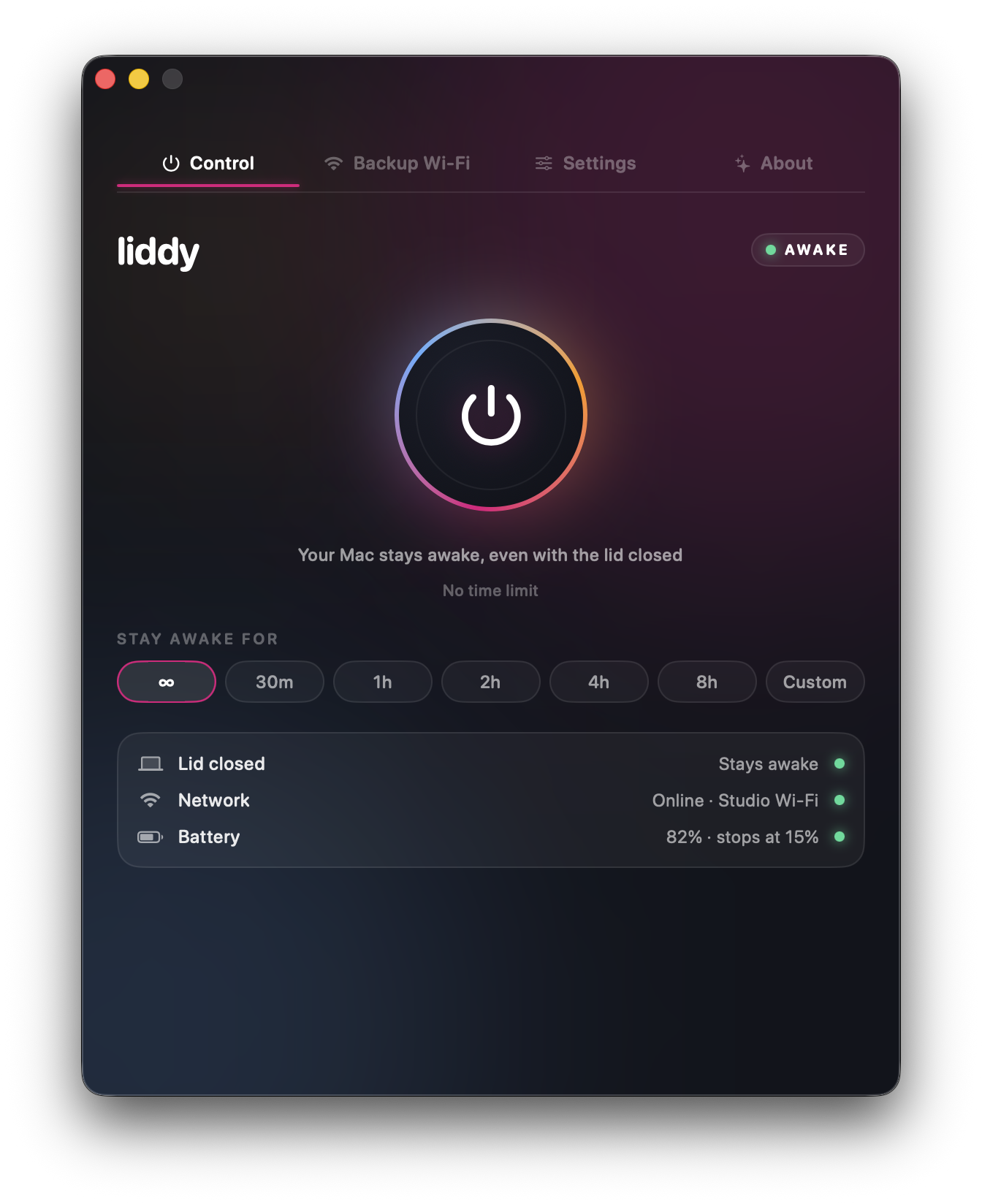
You can also drive it from Terminal, which suits caffeinate fans:
open liddy://on
open liddy://off
The full set of lid-closed options, with safety notes on heat and battery, is in how to keep a Mac awake with the lid closed. If you are doing this to leave an AI coding agent running, see how to run Claude Code with the lid closed.
caffeinate or an app: which should I use?
| You want to... | Use |
|---|---|
| Keep the Mac awake during one command | caffeinate -i <command> |
| Keep it awake for a set time, lid open | caffeinate -t <seconds> |
| Wait for an app or process you already started | caffeinate -w <pid> |
| A one-click toggle without Terminal, lid open | A menu bar app (see Amphetamine alternatives for Mac) |
| Keep running with the lid closed, no display or on battery | Liddy, or pmset disablesleep with care |
For lid-open work, caffeinate is all most developers need, and it costs nothing. When you start closing the lid on long jobs, that is when an app earns its place.
Sources
- Apple, caffeinate(8) manual page (run
man caffeinatein Terminal) - Apple, pmset(1) manual page (run
man pmsetin Terminal) - Apple Support, "Connect an external display to MacBook Pro": https://support.apple.com/guide/macbook-pro/connect-an-external-display-apd8cdd74f57/mac
- Apple Support, "If your external display is dark or low resolution": https://support.apple.com/en-us/102501
Frequently asked questions
What is the caffeinate command on Mac?
caffeinate is a Terminal command built into macOS that stops your Mac from sleeping while it runs. It creates temporary power assertions, so normal sleep returns as soon as it stops. It needs no admin rights and changes no settings.
How do I stop caffeinate on a Mac?
Press Ctrl+C in the Terminal window where it is running. If you closed that window or started it in the background, run pkill caffeinate. If you used -t or ran a command under it, it stops by itself when the timer ends or the command finishes.
What is the difference between caffeinate -i and caffeinate -s?
-i prevents idle sleep, the sleep that happens when nobody is using the Mac. -s prevents system sleep more broadly, but Apple's manual says it is valid only when the Mac is running on AC power. Neither one stops a MacBook sleeping when you close the lid.
Does caffeinate work with the lid closed?
Not on its own. A MacBook with its lid closed sleeps unless it is in Apple's closed-display mode (external display, keyboard and mouse, and power). To keep it running closed without a display or on battery, you need sudo pmset -a disablesleep 1 (and to undo it afterwards) or an app such as Liddy that manages this for you.
How long does caffeinate keep my Mac awake?
Until you stop it, unless you give it a limit. With -t 3600 it lasts one hour, and when you run a command under it, it lasts exactly as long as that command. The -u flag on its own only lasts 5 seconds unless you add -t.
Is caffeinate safe to use?
Yes. It is an Apple tool that ships with macOS, and it does not change any saved settings, so nothing is left behind when it stops. The main risk is battery drain if you leave it running on battery, so use -t or run a command under it for long sessions.